Clean existing data
Remove duplicates using your chosen key, trim spaces, standardize formats and investigate missing or inconsistent values.
See a data-cleaning example →GETSHEETAI · EXCEL ADD-IN
Describe the spreadsheet work you need done. GetSheetAI reads the relevant cells, cleans data, writes formulas and creates reports inside Excel.
Start with the free allowance. A GetSheetAI account and an internet connection are required. See current plans.
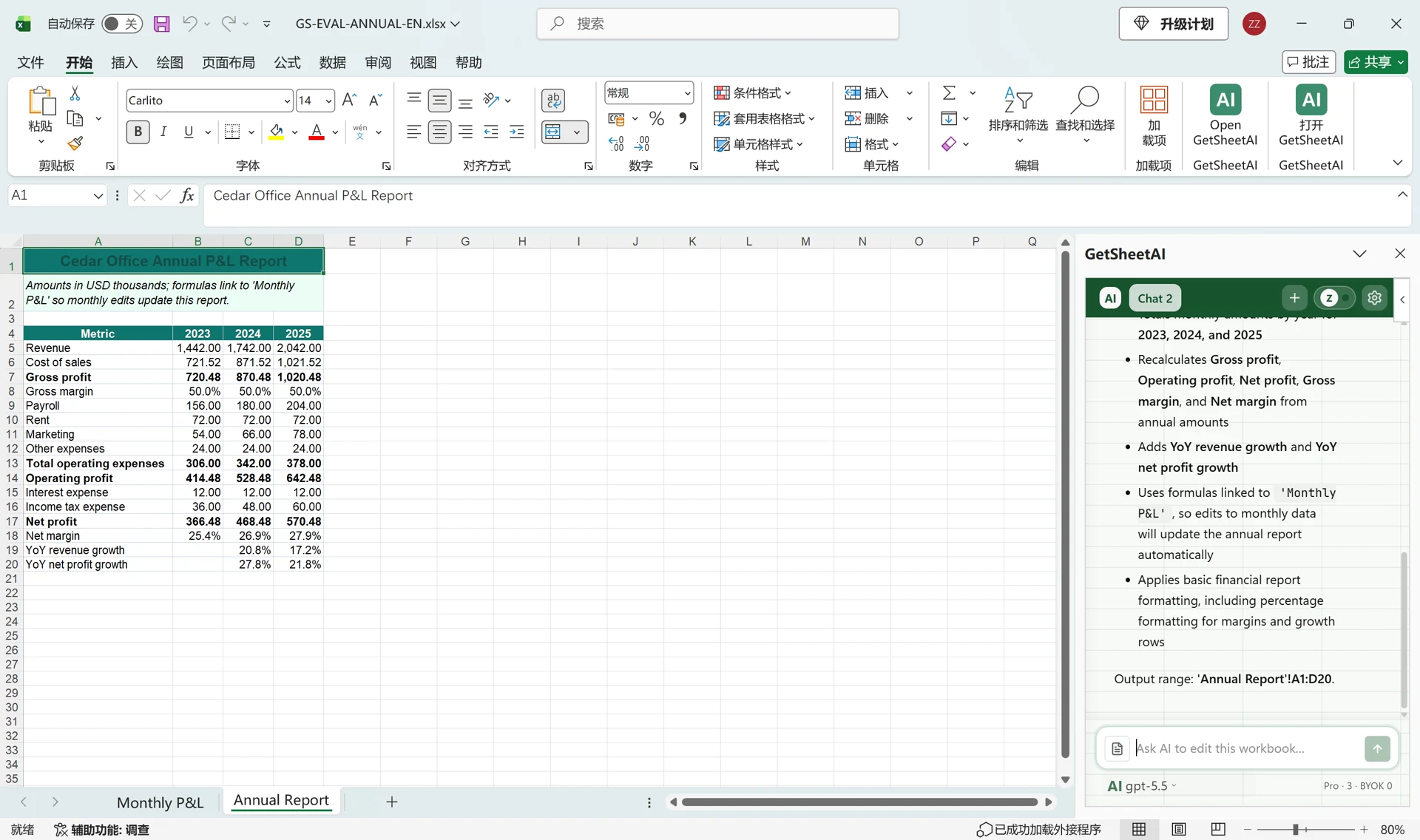
FROM A REQUEST TO WORKING CELLS
Start with a task you already do in a spreadsheet. Tell the assistant which data to use, what should change and where the result belongs.
Remove duplicates using your chosen key, trim spaces, standardize formats and investigate missing or inconsistent values.
See a data-cleaning example →Describe a calculation or lookup. Ask for Excel formulas written into the right cells, with references you can review and reuse.
Match columns across sheets →Attach source files, specify matching headers and ask for a combined table with a source label and one header row.
Merge five Excel files →Summarize data, investigate differences and create charts or reports. Request formula-linked output when it should recalculate.
Build a reconciliation report →REAL WORKBOOK EXAMPLES
These cases come from our own Excel demonstrations using simulated business data. They show the starting point, the instruction and what we checked.
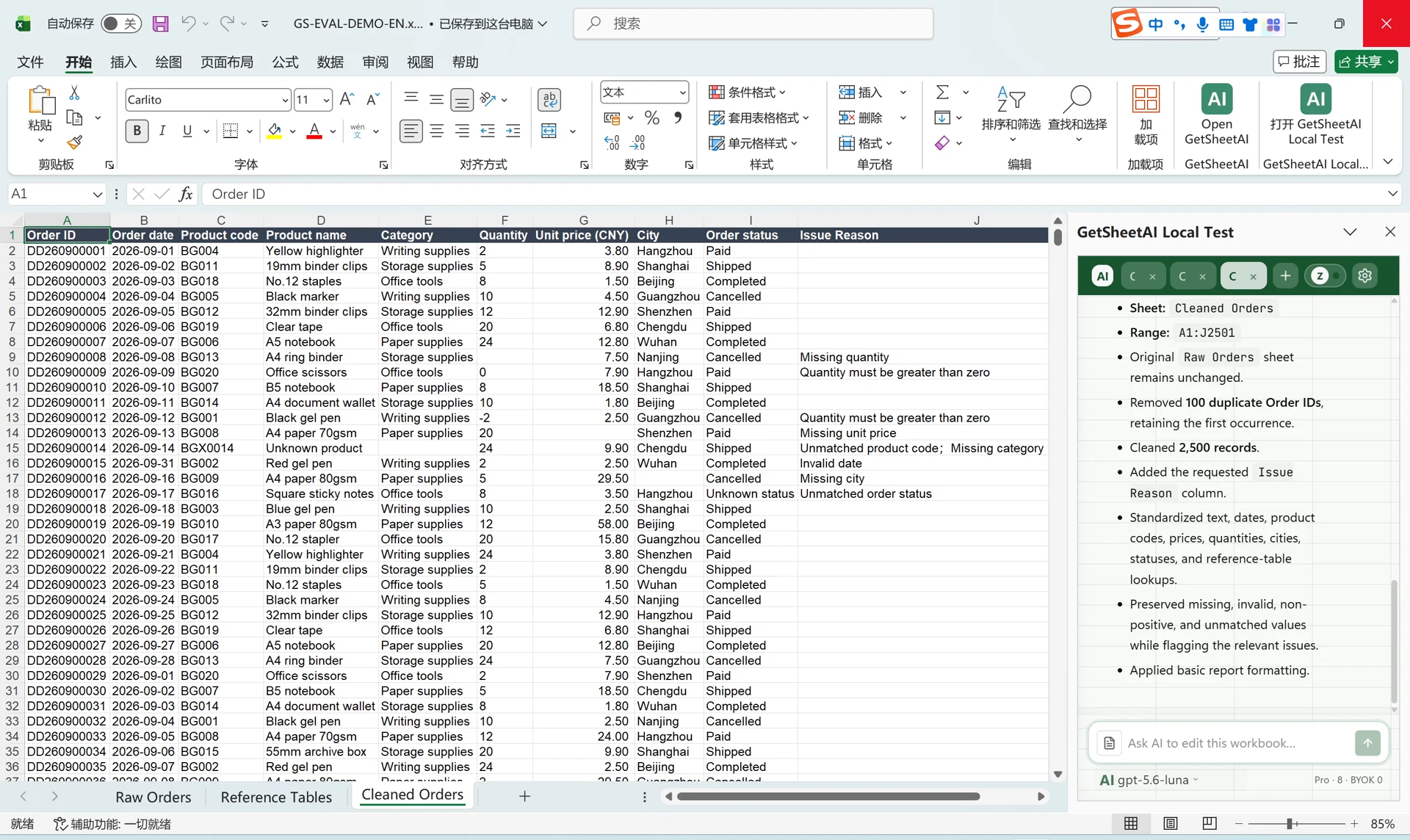
DATA CLEANING
Review a cleanup example with duplicate orders, inconsistent dates and amounts stored as text.
See the cleaning workflow →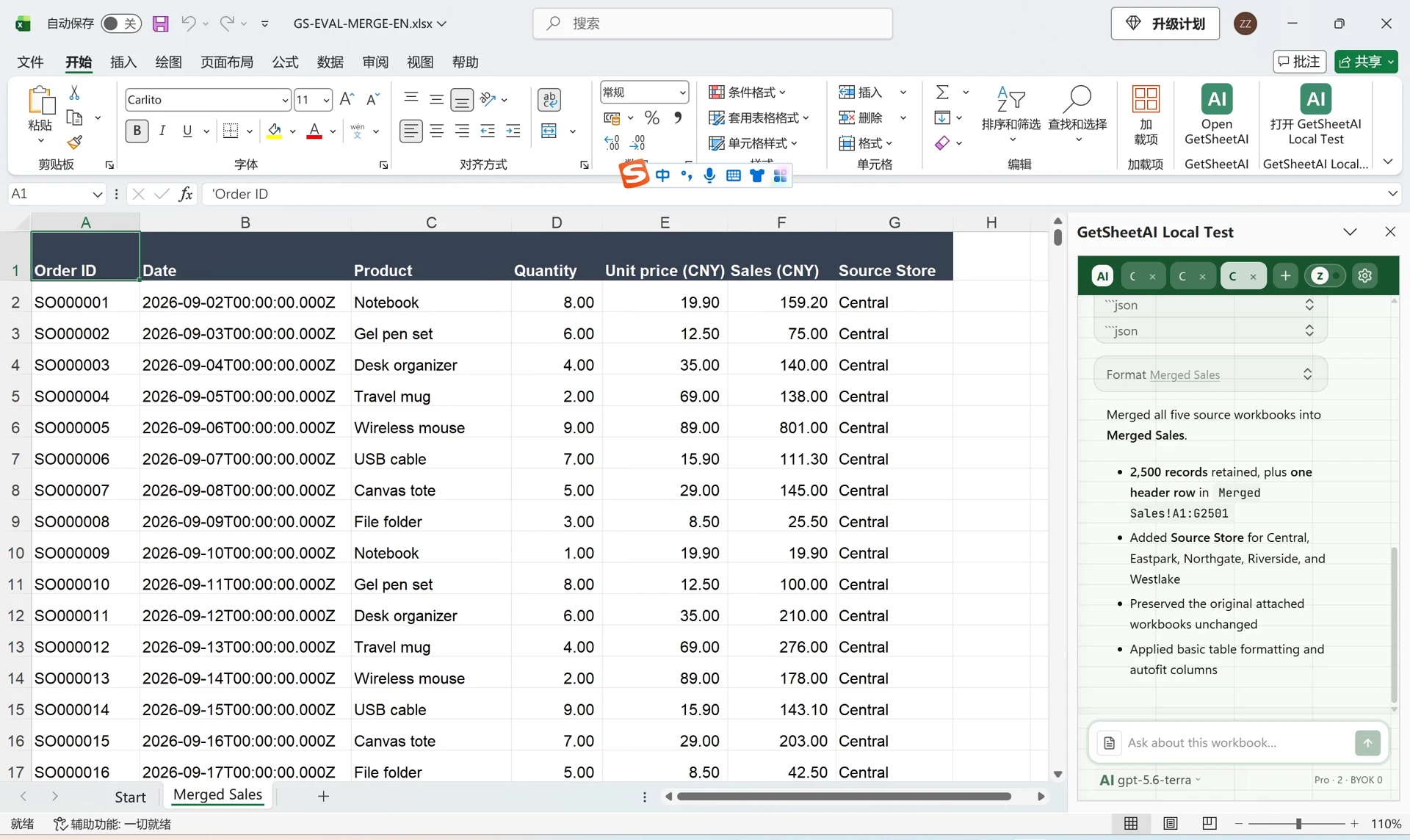
FILE MERGING
Combine 2,500 records, keep a source-store column and leave the original source files unchanged.
See the merge workflow →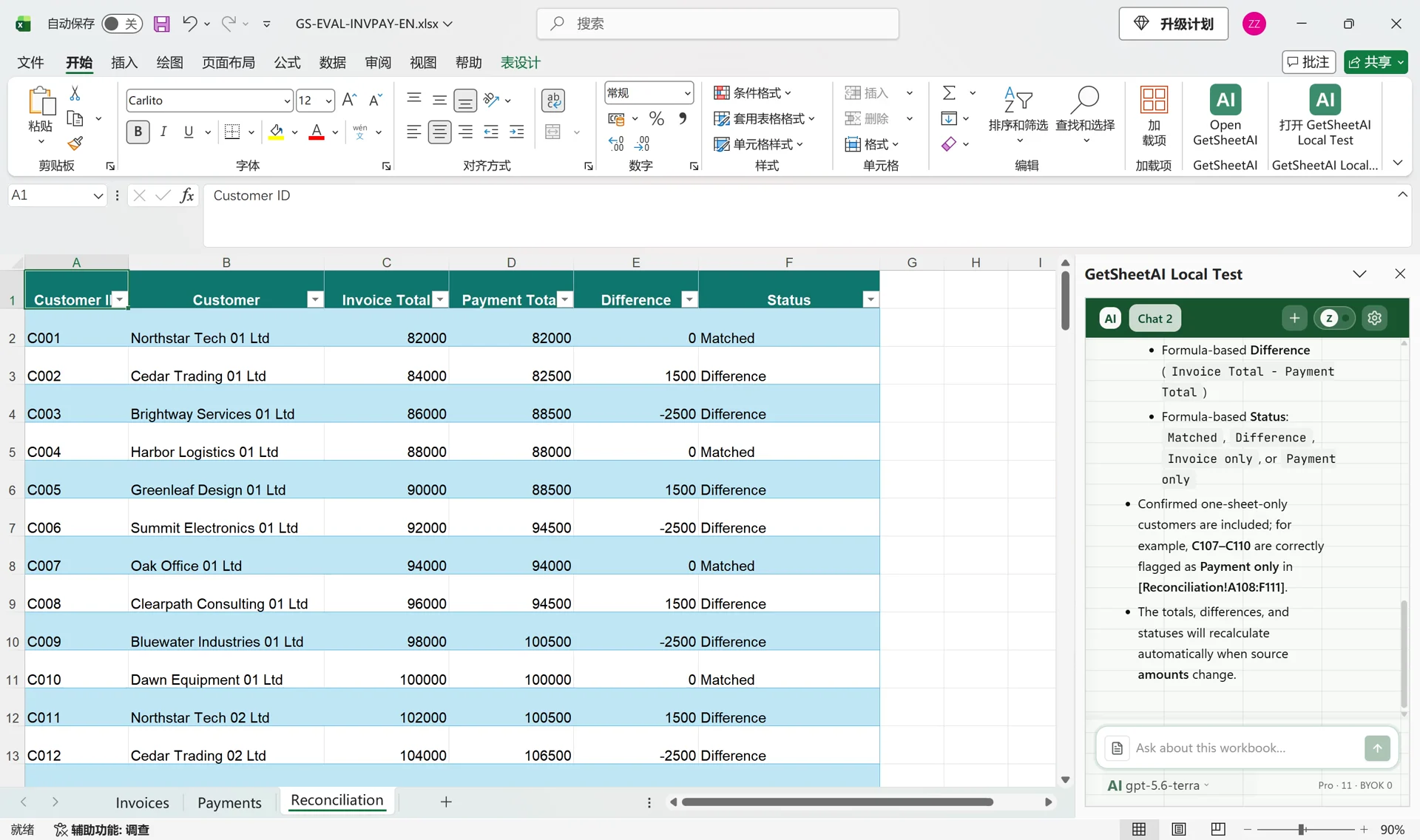
FINANCIAL RECONCILIATION
Compare invoices and payments for 110 customers with SUMIFS totals and differences that recalculate.
See the reconciliation workflow →START WITH ONE CLEAR REQUEST
Name the source, destination and checks that matter to you. Review the output before using it for a business decision.
“Compare the Invoices and Payments sheets by Customer ID. Create a new Reconciliation sheet with invoice totals, payment totals, the difference and a status column. Use formulas, keep both source sheets unchanged and flag customers that do not balance.”
A WORKFLOW YOU CAN REVIEW
GetSheetAI uses the relevant workbook ranges for the task. You can give it more specific instructions about which sheet or selection to use.
Inspect the formulas, totals and formatting in Excel. The add-in has write verification and recovery controls; review its task result and any reported limitations.
Use available platform models or configure a supported provider with your own credentials. Model availability and usage limits depend on your setup and plan.
AI can make mistakes. Recovery coverage depends on the operation; keep your own copy of important workbooks. Processing requires an internet connection and may send relevant workbook data to your selected model provider. Read the security notes.
GET STARTED
Get GetSheetAI from Microsoft Marketplace, or follow the installation options on our download page. A managed work account may need administrator approval.
Open the GetSheetAI pane in Excel, sign in and start with a small representative task. Make a copy of important data before trying a new workflow.
Specify what to change and where the result should go. Inspect the output and keep the formulas or report for your next update.
BEFORE YOU INSTALL
GetSheetAI is an independent AI add-in that works in a sidebar inside Microsoft Excel. You describe a task, and the assistant can read relevant workbook data and use tools to write formulas, clean data, format cells and build reports. It is not a Microsoft product.
You can start with the current free allowance. Paid plans and usage limits are listed on the pricing page. Installing the add-in does not purchase a subscription.
The work takes place in the workbook you have open. GetSheetAI can use live cell references and write the result into Excel, so a formula or table does not need to be copied back from a separate conversation.
Formula-linked results recalculate when referenced source values change. That does not mean a fixed range automatically expands to include new rows, customers or months. Ask for a suitable table or dynamic structure, and check its coverage.
You need an Excel environment that supports Office Add-ins and the APIs required for the operation. Microsoft 365 and compatible desktop or web versions have different capabilities. Follow the installation guide; organization policies can also prevent installation or limit features.
For work on the workbook already open in Excel, no separate file upload is needed. You can attach additional files when a task needs them. Relevant data may still be sent to the selected model service for processing; this is not an offline-only tool. See our privacy policy.
No. GetSheetAI is a separate add-in. If you are evaluating several tools, compare their supported environments, task workflows and plans. Our Excel AI feature comparison explains documented capabilities and the limits of the comparison.